You have a frontend app. A backend API. Maybe a shared design system.
And a component library you copy-paste between multiple projects.
Every time you change a shared utility, you update it in one repo, publish it to npm, bump the version in three other repos, and pray nothing breaks.
Sound familiar?
There’s a better way. It’s called a monorepo. No, it’s not complicated. You’ve just been told it is.
Table of contents
Open Table of contents
- What Even Is a Monorepo?
- Does that mean putting everything in one folder?
- Why Should You Care?
- The Problem With Naive Monorepos
- Turborepo
- The Tools We’re Using
- Let’s Build One From Scratch
- Step 1: Install pnpm
- Step 2: Create the Project
- Step 3: Set Up pnpm Workspaces
- Step 4: Configure Turborepo
- Step 5: Shared TypeScript Config
- Step 6: Build the Shared Utils Package
- Step 7: Build the Shared UI Package
- Step 8: Set Up the Next.js Web App
- Step 9: Set Up the Express API
- Step 10: Install Everything
- Step 11: Run Everything
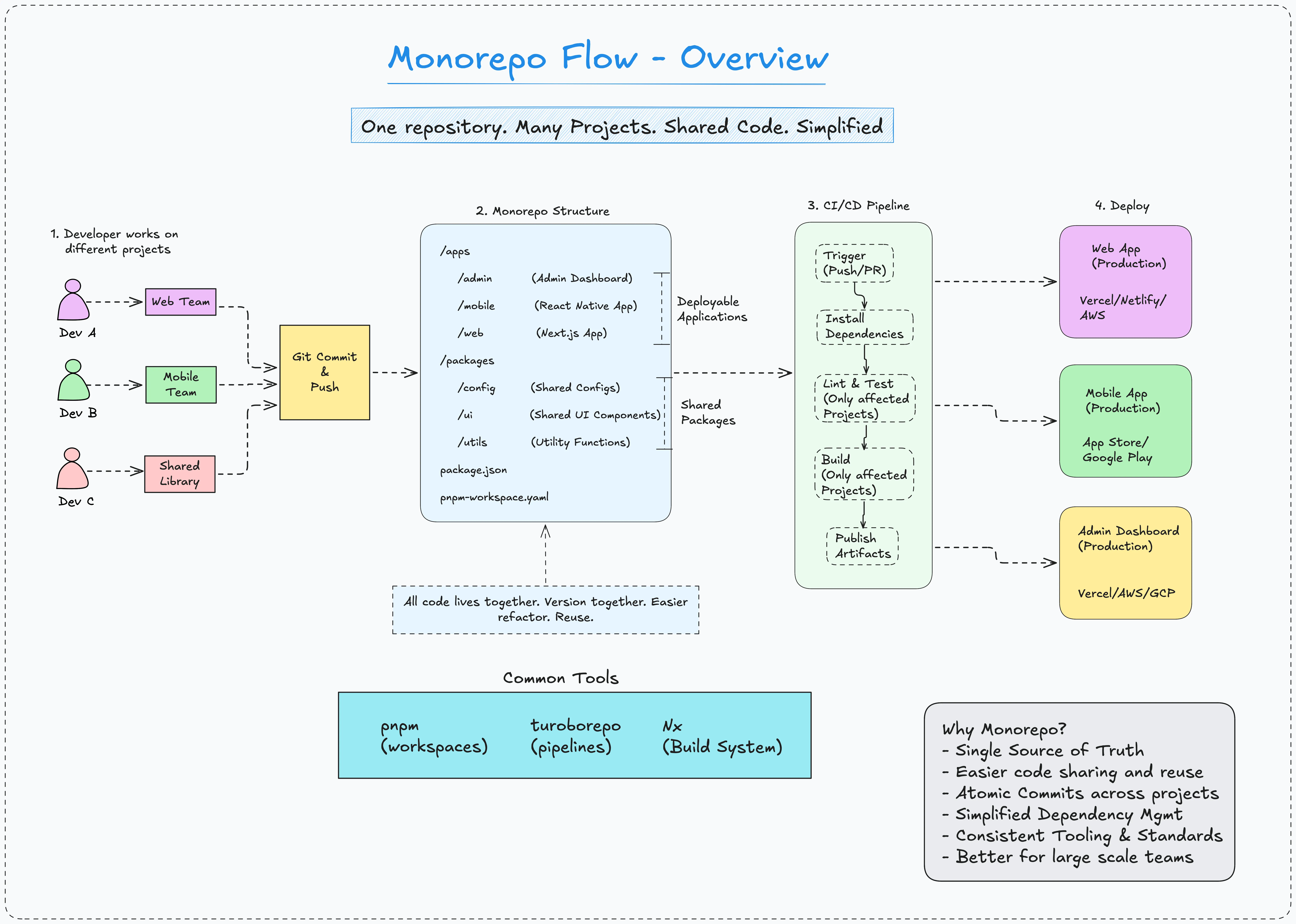
- Monorepo Flow
- Understanding the Dependency Graph
- The Caching System Explained
- Environment Variables in Turborepo
- Adding a New Package (The Real Workflow)
- Managing Scripts at Scale
- Your Final Folder Structure
- Common Mistakes to Avoid
- When Should You NOT Use a Monorepo?
- A Quick Recap
What Even Is a Monorepo?
A monorepo is one repository that holds multiple projects.
That’s it.
Instead of this:
github.com/sagar-shiroya/frontend-app
github.com/sagar-shiroya/backend-api
github.com/sagar-shiroya/design-system
github.com/sagar-shiroya/shared-utils
You have this:
github.com/sagar-shiroya/my-project
  ├── apps/
  │   ├── web/        ← your Next.js frontend
  │   └── api/        ← your Express backend
  └── packages/
      ├── ui/         ← your design system
      └── utils/      ← your shared utilities
One repo. Multiple projects. All living together.
No more copy-pasting. No more version bumping. No more “which repo was that file in?”
Does that mean putting everything in one folder?
Kind of. But there’s a difference.
A monorepo is not a monolith.
A monolith is one big app where all the code is together.
A monorepo is multiple independent deployable apps and shared packages.
- each with their own
package.json, - their own build,
- their own tests.
All simply live in the same git repository.
Think of it like an apartment building.
Each apartment is independent. You cook your own food, pay your own rent, come and go as you like. But you share the building, the elevator, and the electricity bill.
That’s a monorepo. Shared infrastructure, independent units.
Why Should You Care?
Here’s a real scenario.
You’re building a SaaS product. You have:
- A Next.js web app for customers
- A React Native mobile app
- An Express API
- A shared
Buttoncomponent used in both apps - A
formatDateutility used everywhere
In separate repos, changing formatDate means:
- Go to
shared-utilsrepo - Make the change
- Bump version (
1.0.4 → 1.0.5) - Publish to npm
- Go to web app repo, update dependency
- Go to mobile app repo, update dependency
- Go to API repo, update dependency
- Test everything separately
- Realize you made a typo in step 2 (oops…)
In a monorepo, changing formatDate means:
- Change it
- Done
Every app that uses it picks up the change instantly. No publishing. No version bumping. No separate deploys just to sync a utility.
The Problem With Naive Monorepos
Before tools like Turborepo existed, people did monorepos the hard way.
They’d run builds sequentially. App A builds, then App B builds, then App C builds.
Even if you only changed App A, you’d still wait for B and C to build.
This is why people said “monorepos are slow.”
Turborepo fixes this.
Turborepo
Turborepo is a build system made specifically for monorepos.
It does two things extremely well:
1. Only rebuilds what changed
If you change code in your web app, Turborepo knows your api hasn’t changed. It skips the api build entirely.
2. Caches everything
If you already built something and nothing changed, Turborepo returns the cached result instantly. No rebuild. Not even a second wasted.
These two features alone make a monorepo feel fast.
And if you opt into Turborepo’s remote cache, your teammates get your cache too. They pull your build result instead of rebuilding from scratch. Your CI pipeline does the same.
The Tools We’re Using
Here’s our stack for this guide:
| Tool | What it does |
|---|---|
| pnpm | Package manager with built-in workspace support |
| Turborepo | Build orchestration and caching |
| TypeScript | Shared types across all packages |
| Node.js 20+ | Runtime |
We’re using pnpm instead of npm or yarn because pnpm’s workspace support is first-class and it’s significantly faster. It also handles symlinks between your local packages way more cleanly.
Let’s Build One From Scratch
We’re building a real-world monorepo called my-saas.
It will have:
apps/web— a Next.js frontendapps/api— an Express backendpackages/ui— a shared React component librarypackages/utils— shared utility functionspackages/typescript-config— shared TypeScript config
Step 1: Install pnpm
If you don’t have pnpm yet:
npm install -g pnpmCheck it works:
pnpm  --version
# 11.x.x
Step 2: Create the Project
mkdir my-saas
cd my-saas
git init
Create the root package.json:
{
  "name": "my-saas",
  "private": true,
  "scripts": {
    "build": "turbo build",
    "dev": "turbo dev",
    "lint": "turbo lint",
    "test": "turbo test"
  },
  "devDependencies": {
    "turbo": "^2.0.0"
  },
  "engines": {
    "node": ">=20",
    "pnpm": ">=9"
  }
}
A few things to notice:
"private": true— this root package is never published to npm- The scripts call
turbocommands — Turborepo handles the rest devDependencieshasturbo— it lives at the root level
Step 3: Set Up pnpm Workspaces
Create pnpm-workspace.yaml in the root:
packages:
  - "apps/*"
  - "packages/*"
This tells pnpm: “Anything inside apps/ or packages/ is a workspace package.”
Now create the folder structure:
mkdir -p apps/web apps/api packages/ui packages/utils packages/typescript-configStep 4: Configure Turborepo
Create turbo.json in the root:
{
  "$schema": "https://turbo.build/schema.json",
  "tasks": {
    "build": {
      "dependsOn": ["^build"],
      "outputs": [".next/**", "!.next/cache/**", "dist/**"]
    },
    "dev": {
      "cache": false,
      "persistent": true
    },
    "lint": {
      "dependsOn": ["^lint"]
    },
    "test": {
      "dependsOn": ["^build"],
      "outputs": ["coverage/**"]
    }
  }
}
Let’s read what this actually says.
"dependsOn": ["^build"] — The ^ symbol means “build my dependencies first.”
So if web depends on ui, Turborepo will build ui before building web. Automatically. Every time.
"outputs" — Tell Turborepo what files a task produces. It uses this for caching. If these files exist and nothing has changed, it skips the task entirely.
"cache": false for dev — Dev servers run continuously. You never cache a running process.
"persistent": true for dev — This tells Turborepo the task will keep running (like a dev server) and not to wait for it to finish.
Step 5: Shared TypeScript Config
This one package saves you from copy-pasting tsconfig.json across every app.
cd packages/typescript-configCreate package.json:
{
  "name": "@my-saas/typescript-config",
  "version": "0.0.0",
  "private": true,
  "files": ["*.json"],
  "license": "MIT"
}
Create base.json:
{
  "$schema": "https://json.schemastore.org/tsconfig",
  "display": "Default",
  "compilerOptions": {
    "strict": true,
    "strictNullChecks": true,
    "esModuleInterop": true,
    "skipLibCheck": true,
    "forceConsistentCasingInFileNames": true,
    "resolveJsonModule": true,
    "moduleDetection": "force",
    "isolatedModules": true
  }
}
Create nextjs.json for Next.js apps:
{
  "$schema": "https://json.schemastore.org/tsconfig",
  "display": "Next.js",
  "extends": "./base.json",
  "compilerOptions": {
    "target": "ES2017",
    "lib": ["dom", "dom.iterable", "esnext"],
    "module": "esnext",
    "moduleResolution": "bundler",
    "allowJs": true,
    "jsx": "preserve",
    "incremental": true,
    "plugins": [{ "name": "next" }]
  },
  "exclude": ["node_modules"]
}
Create node.json for Node.js apps (like your API):
{
  "$schema": "https://json.schemastore.org/tsconfig",
  "display": "Node.js",
  "extends": "./base.json",
  "compilerOptions": {
    "target": "ES2022",
    "lib": ["ES2022"],
    "module": "NodeNext",
    "moduleResolution": "NodeNext"
  }
}
Now every app in your monorepo can use these configs. No duplication.
Step 6: Build the Shared Utils Package
cd packages/utilsCreate package.json:
{
  "name": "@my-saas/utils",
  "version": "0.0.0",
  "private": true,
  "main": "./src/index.ts",
  "types": "./src/index.ts",
  "scripts": {
    "lint": "tsc --noEmit"
  },
  "devDependencies": {
    "@my-saas/typescript-config": "workspace:*",
    "typescript": "^5.4.0"
  }
}
Notice "workspace:*" — this is pnpm telling the package manager “find this dependency inside the workspace, not on npm.”
Create tsconfig.json:
{
  "extends": "@my-saas/typescript-config/base.json",
  "compilerOptions": {
    "outDir": "dist"
  },
  "include": ["src"]
}
Create src/index.ts:
export * from "./format";
export * from "./validation";
Create src/format.ts:
export function formatDate(date: Date | string): string {
  const d = typeof date === "string" ? new Date(date) : date;
  return new Intl.DateTimeFormat("en-US", {
    year: "numeric",
    month: "long",
    day: "numeric",
  }).format(d);
}

export function formatCurrency(
  amount: number,
  currency: string = "USD"
): string {
  return new Intl.NumberFormat("en-US", {
    style: "currency",
    currency,
  }).format(amount);
}

export function formatRelativeTime(date: Date | string): string {
  const d = typeof date === "string" ? new Date(date) : date;
  const now = new Date();
  const diffMs = now.getTime() - d.getTime();
  const diffDays = Math.floor(diffMs / (1000 * 60 * 60 * 24));

  if (diffDays === 0) return "Today";
  if (diffDays === 1) return "Yesterday";
  if (diffDays < 7) return `${diffDays} days ago`;
  if (diffDays < 30) return `${Math.floor(diffDays / 7)} weeks ago`;

  return formatDate(d);
}
Create src/validation.ts:
export function isValidEmail(email: string): boolean {
  return /^[^\s@]+@[^\s@]+\.[^\s@]+$/.test(email);
}

export function isValidUrl(url: string): boolean {
  try {
    new URL(url);
    return true;
  } catch {
    return false;
  }
}

export function clamp(value: number, min: number, max: number): number {
  return Math.min(Math.max(value, min), max);
}
Clean, typed, shareable. Both your web app and api can use these without any publishing step.
Step 7: Build the Shared UI Package
This is where the real power shows up.
cd packages/uiCreate package.json:
{
  "name": "@my-saas/ui",
  "version": "0.0.0",
  "private": true,
  "exports": {
    ".": {
      "types": "./src/index.ts",
      "default": "./src/index.ts"
    }
  },
  "scripts": {
    "lint": "tsc --noEmit"
  },
  "devDependencies": {
    "@my-saas/typescript-config": "workspace:*",
    "@types/react": "^18.2.0",
    "typescript": "^5.4.0"
  },
  "peerDependencies": {
    "react": "^18.0.0"
  }
}
Create tsconfig.json:
{
  "extends": "@my-saas/typescript-config/nextjs.json",
  "compilerOptions": {
    "outDir": "dist"
  },
  "include": ["src"],
  "exclude": ["node_modules", "dist"]
}
Create src/index.ts:
export * from "./button";
export * from "./card";
export * from "./badge";
Create src/button.tsx:
import * as React from "react";

type ButtonVariant = "primary" | "secondary" | "ghost" | "danger";
type ButtonSize = "sm" | "md" | "lg";

interface ButtonProps extends React.ButtonHTMLAttributes<HTMLButtonElement> {
  variant?: ButtonVariant;
  size?: ButtonSize;
  isLoading?: boolean;
  leftIcon?: React.ReactNode;
}

const variantStyles: Record<ButtonVariant, string> = {
  primary: "bg-blue-600 text-white hover:bg-blue-700 border-transparent",
  secondary: "bg-gray-100 text-gray-900 hover:bg-gray-200 border-transparent",
  ghost: "bg-transparent text-gray-700 hover:bg-gray-100 border-transparent",
  danger: "bg-red-600 text-white hover:bg-red-700 border-transparent",
};

const sizeStyles: Record<ButtonSize, string> = {
  sm: "px-3 py-1.5 text-sm",
  md: "px-4 py-2 text-sm",
  lg: "px-6 py-3 text-base",
};

export function Button({
  variant = "primary",
  size = "md",
  isLoading = false,
  leftIcon,
  children,
  className = "",
  disabled,
  ...props
}: ButtonProps) {
  return (
    <button
      className={`
        inline-flex items-center gap-2 font-medium rounded-lg border
        transition-colors duration-150 focus:outline-none focus:ring-2
        focus:ring-blue-500 focus:ring-offset-2 disabled:opacity-50
        disabled:cursor-not-allowed
        ${variantStyles[variant]}
        ${sizeStyles[size]}
        ${className}
      `}
      disabled={disabled || isLoading}
      {...props}
    >
      {isLoading ? (
        <span className="h-4 w-4 animate-spin rounded-full border-2 border-current border-t-transparent" />
      ) : leftIcon ? (
        <span className="h-4 w-4">{leftIcon}</span>
      ) : null}
      {children}
    </button>
  );
}
Create src/card.tsx:
import * as React from "react";

interface CardProps {
  children: React.ReactNode;
  className?: string;
  padding?: "none" | "sm" | "md" | "lg";
}

interface CardHeaderProps {
  title: string;
  description?: string;
  action?: React.ReactNode;
}

const paddingStyles = {
  none: "",
  sm: "p-4",
  md: "p-6",
  lg: "p-8",
};

export function Card({ children, className = "", padding = "md" }: CardProps) {
  return (
    <div
      className={`bg-white rounded-xl border border-gray-200 shadow-sm ${paddingStyles[padding]} ${className}`}
    >
      {children}
    </div>
  );
}

export function CardHeader({ title, description, action }: CardHeaderProps) {
  return (
    <div className="flex items-start justify-between mb-4">
      <div>
        <h3 className="text-lg font-semibold text-gray-900">{title}</h3>
        {description && (
          <p className="text-sm text-gray-500 mt-0.5">{description}</p>
        )}
      </div>
      {action && <div className="ml-4 flex-shrink-0">{action}</div>}
    </div>
  );
}
Create src/badge.tsx:
import * as React from "react";

type BadgeVariant = "default" | "success" | "warning" | "danger" | "info";

interface BadgeProps {
  variant?: BadgeVariant;
  children: React.ReactNode;
}

const variantStyles: Record<BadgeVariant, string> = {
  default: "bg-gray-100 text-gray-700",
  success: "bg-green-100 text-green-700",
  warning: "bg-yellow-100 text-yellow-700",
  danger: "bg-red-100 text-red-700",
  info: "bg-blue-100 text-blue-700",
};

export function Badge({ variant = "default", children }: BadgeProps) {
  return (
    <span
      className={`inline-flex items-center px-2.5 py-0.5 rounded-full text-xs font-medium ${variantStyles[variant]}`}
    >
      {children}
    </span>
  );
}
One component library. Used by every app. Changed in one place. Works everywhere.
Step 8: Set Up the Next.js Web App
cd apps/webCreate package.json:
{
  "name": "@my-saas/web",
  "version": "0.0.0",
  "private": true,
  "scripts": {
    "dev": "next dev",
    "build": "next build",
    "start": "next start",
    "lint": "next lint"
  },
  "dependencies": {
    "@my-saas/ui": "workspace:*",
    "@my-saas/utils": "workspace:*",
    "next": "^14.2.0",
    "react": "^18.2.0",
    "react-dom": "^18.2.0"
  },
  "devDependencies": {
    "@my-saas/typescript-config": "workspace:*",
    "@types/node": "^20.0.0",
    "@types/react": "^18.2.0",
    "typescript": "^5.4.0"
  }
}
See "@my-saas/ui": "workspace:*" and "@my-saas/utils": "workspace:*"?
That’s it. That’s the magic. You’re depending on your local packages the same way you’d depend on any npm package. pnpm resolves them from inside your workspace.
Create tsconfig.json:
{
  "extends": "@my-saas/typescript-config/nextjs.json",
  "include": ["next-env.d.ts", "**/*.ts", "**/*.tsx", ".next/types/**/*.ts"],
  "exclude": ["node_modules"]
}
Create next.config.ts:
import type { NextConfig } from "next";

const config: NextConfig = {
  transpilePackages: ["@my-saas/ui", "@my-saas/utils"],
};

export default config;
transpilePackages tells Next.js to compile your local workspace packages. This is necessary because your ui and utils packages export TypeScript source directly.
Now let’s use our shared packages. Create app/page.tsx:
import { Button, Card, CardHeader, Badge } from "@my-saas/ui";
import { formatDate, formatCurrency, isValidEmail } from "@my-saas/utils";

export default function HomePage() {
  const today = formatDate(new Date());
  const price = formatCurrency(49.99);
  const testEmail = "user@example.com";

  return (
    <main className="min-h-screen bg-gray-50 p-8">
      <div className="max-w-2xl mx-auto space-y-6">

        <div>
          <h1 className="text-3xl font-bold text-gray-900">My SaaS</h1>
          <p className="text-gray-500 mt-1">{today}</p>
        </div>

        <Card>
          <CardHeader
            title="Pro Plan"
            description="Everything you need to ship faster"
            action={<Badge variant="success">Popular</Badge>}
          />
          <p className="text-3xl font-bold text-gray-900">{price}<span className="text-sm font-normal text-gray-500">/month</span></p>
          <Button className="mt-4 w-full" variant="primary">
            Get Started
          </Button>
        </Card>

        <Card>
          <CardHeader title="Email Validation" />
          <p className="text-sm text-gray-600">
            Is <code>{testEmail}</code> valid?{" "}
            <Badge variant={isValidEmail(testEmail) ? "success" : "danger"}>
              {isValidEmail(testEmail) ? "Valid" : "Invalid"}
            </Badge>
          </p>
        </Card>

      </div>
    </main>
  );
}
This is the whole point. You imported Button, Card, Badge from your own local package. You imported formatDate, formatCurrency, isValidEmail from another local package. No npm publish. No version management. It just works.
Step 9: Set Up the Express API
cd apps/apiCreate package.json:
{
  "name": "@my-saas/api",
  "version": "0.0.0",
  "private": true,
  "scripts": {
    "dev": "tsx watch src/index.ts",
    "build": "tsc",
    "start": "node dist/index.js",
    "lint": "tsc --noEmit"
  },
  "dependencies": {
    "@my-saas/utils": "workspace:*",
    "express": "^4.19.0",
    "cors": "^2.8.5"
  },
  "devDependencies": {
    "@my-saas/typescript-config": "workspace:*",
    "@types/express": "^4.17.0",
    "@types/cors": "^2.8.0",
    "@types/node": "^20.0.0",
    "tsx": "^4.0.0",
    "typescript": "^5.4.0"
  }
}
Create tsconfig.json:
{
  "extends": "@my-saas/typescript-config/node.json",
  "compilerOptions": {
    "outDir": "dist",
    "rootDir": "src"
  },
  "include": ["src"],
  "exclude": ["node_modules", "dist"]
}
Create src/index.ts:
import express from "express";
import cors from "cors";
import { isValidEmail, formatDate, formatCurrency } from "@my-saas/utils";

const app = express();
const PORT = process.env.PORT || 3001;

app.use(cors());
app.use(express.json());

// Health check
app.get("/health", (_req, res) => {
  res.json({
    status: "ok",
    timestamp: formatDate(new Date()),
  });
});

// Validate email
app.post("/validate/email", (req, res) => {
  const { email } = req.body as { email: string };

  if (!email) {
    return res.status(400).json({ error: "Email is required" });
  }

  return res.json({
    email,
    isValid: isValidEmail(email),
    checkedAt: formatDate(new Date()),
  });
});

// Get pricing
app.get("/pricing", (_req, res) => {
  const plans = [
    { name: "Starter", price: 0, formatted: formatCurrency(0) },
    { name: "Pro", price: 49, formatted: formatCurrency(49) },
    { name: "Enterprise", price: 199, formatted: formatCurrency(199) },
  ];

  res.json({ plans });
});

app.listen(PORT, () => {
  console.log(`API running on http://localhost:${PORT}`);
});
Your API uses the exact same isValidEmail, formatDate, and formatCurrency as your frontend.
Same logic. One source of truth.
If you ever fix a bug in isValidEmail, it’s fixed in both the frontend and backend at the same time. No sync required.
Step 10: Install Everything
Go back to the root:
cd ../../  # back to my-saas root
pnpm install
pnpm reads your pnpm-workspace.yaml, finds all your workspace packages, and installs everything. It also creates symlinks between your local packages so they resolve correctly.
You’ll see node_modules at the root (shared dependencies) and inside each package (package-specific dependencies). pnpm is smart about deduplication. It won’t install the same package twice if it can avoid it.
Step 11: Run Everything
To run all dev servers at once:
pnpm devTurborepo spins up all dev scripts in parallel. Your Next.js app, your Express API will be running simultaneously. One command.
To build everything:
pnpm buildTurborepo figures out the order automatically. It builds utils and ui first (because web and api depend on them), then builds web and api in parallel.
To build only the web app:
pnpm turbo build --filter=@my-saas/webThe --filter flag is incredibly useful. You can run tasks on specific packages.
Perfect for CI.
Monorepo Flow
Understanding the Dependency Graph
Here’s how Turborepo thinks about your packages:
        @my-saas/typescript-config       <--- Build First
                      │
        ├─────────────│────────────────┐
        │                              │
@my-saas/utils                    @my-saas/ui    <--- Build parallel
        │                              │
        └──────────────┬───────────────┘
                       │
            ┌──────────┴──────────┐
            │                     │
      @my-saas/web             @my-saas/api     <--- Build parallel at the end
When you run turbo build, it walks this graph bottom-up.
-
typescript-confighas no dependencies → build it first. -
utilsanduidepend ontypescript-config→ build them next (in parallel). -
webandapidepend onutilsandui→ build them last (in parallel).
You never have to think about this order.
Turborepo handles it based on your package.json dependencies.
The Caching System Explained
This is where Turborepo earns its reputation.
When you run turbo build, Turborepo computes a hash for each task. The hash is based on:
- The source files of that package
- The task’s configuration
- Environment variables you’ve declared
- The outputs of any dependencies
If the hash matches something it’s seen before, it restores the cached output instantly.
Watch this in action:
# First build — builds everything fresh
pnpm build

# Run it again without changing anything
pnpm build
Second run output:
@my-saas/utils:build: cache hit, replaying output
@my-saas/ui:build: cache hit, replaying output
@my-saas/web:build: cache hit, replaying output
@my-saas/api:build: cache hit, replaying output

Tasks:    4 successful, 4 total
Cached:   4 cached, 4 total
Time:     312ms
312 milliseconds. For a complete build. Because everything was cached.
Now change one line in apps/web:
pnpm build@my-saas/utils:build: cache hit, replaying output
@my-saas/ui:build: cache hit, replaying output
@my-saas/api:build: cache hit, replaying output
@my-saas/web:build: cache miss, executing...
Tasks: 4 successful, 4 total
Cached: 3 cached, 4 total
Time: 8.2sOnly web rebuilt. The rest hit cache. This scales beautifully as your monorepo grows.
Environment Variables in Turborepo
Turborepo doesn’t automatically include environment variables in its cache hash.
You have to declare them.
This is a feature, not a bug. You control exactly which env vars affect which tasks.
{
  "$schema": "https://turbo.build/schema.json",
  "globalEnv": ["NODE_ENV"],
  "tasks": {
    "build": {
      "dependsOn": ["^build"],
      "outputs": [".next/**", "!.next/cache/**", "dist/**"],
      "env": ["DATABASE_URL", "NEXT_PUBLIC_API_URL"]
    },
    "dev": {
      "cache": false,
      "persistent": true,
      "env": ["DATABASE_URL", "NEXT_PUBLIC_API_URL", "PORT"]
    }
  }
}
globalEnv — affects every task.
env inside a task — specific to that task.
If DATABASE_URL changes, Turborepo invalidates the cache for tasks that declared it. If it didn’t change, cache is still valid.
Create a .env file at the root:
# .env
NODE_ENV=development
DATABASE_URL=postgresql://localhost:5432/mydb
NEXT_PUBLIC_API_URL=http://localhost:3001
PORT=3001
And add .env to .gitignore.
Adding a New Package (The Real Workflow)
Let’s say you want to add a @my-saas/email package for sending emails.
mkdir packages/email
cd packages/email
Create package.json:
{
  "name": "@my-saas/email",
  "version": "0.0.0",
  "private": true,
  "main": "./src/index.ts",
  "types": "./src/index.ts",
  "scripts": {
    "lint": "tsc --noEmit"
  },
  "dependencies": {
    "@my-saas/utils": "workspace:*"
  },
  "devDependencies": {
    "@my-saas/typescript-config": "workspace:*",
    "typescript": "^5.4.0"
  }
}
Create src/index.ts:
import { isValidEmail } from "@my-saas/utils";

export interface EmailOptions {
  to: string;
  subject: string;
  body: string;
}

export async function sendEmail(options: EmailOptions): Promise<void> {
  if (!isValidEmail(options.to)) {
    throw new Error(`Invalid email address: ${options.to}`);
  }

  // Your email sending logic here
  console.log(`Sending email to ${options.to}: ${options.subject}`);
}

export function createWelcomeEmail(name: string): EmailOptions {
  return {
    to: "",
    subject: `Welcome to My SaaS, ${name}!`,
    body: `Hi ${name}, thanks for joining us.`,
  };
}
Run pnpm install from the root to link the new package.
Now add it to your API:
// apps/api/package.json
{
  "dependencies": {
    "@my-saas/utils": "workspace:*",
    "@my-saas/email": "workspace:*",
    ...
  }
}
Import and use:
// apps/api/src/index.ts
import { sendEmail, createWelcomeEmail } from "@my-saas/email";

app.post("/users", async (req, res) => {
  const { name, email } = req.body;

  // ... create user in database

  const welcomeEmail = createWelcomeEmail(name);
  await sendEmail({ ...welcomeEmail, to: email });

  res.status(201).json({ success: true });
});
You added a new package and connected it to an existing app in about 5 minutes. No npm publish. No version management. No waiting.
Managing Scripts at Scale
As your monorepo grows, you’ll want to run tasks only for specific apps or filter by certain criteria.
Some useful turbo command patterns:
# Run dev for only the web app
pnpm turbo dev  --filter=@my-saas/web

# Build all packages that web depends on
pnpm turbo build  --filter=@my-saas/web...

# Run lint for everything that changed since main branch
pnpm turbo lint  --filter=...[origin/main]

# Run tests for packages that depend on utils (after changing utils)
pnpm turbo test  --filter=...@my-saas/utils

# Run build for all apps (not packages)
pnpm turbo build  --filter=./apps/*
The filter syntax is powerful. The ... means “and all dependents/dependencies.”
Your Final Folder Structure
After everything is set up, your monorepo looks like this:
my-saas/
├── apps/
│   ├── web/
│   │   ├── app/
│   │   │   └── page.tsx
│   │   ├── next.config.ts
│   │   ├── package.json
│   │   └── tsconfig.json
│   └── api/
│       ├── src/
│       │   └── index.ts
│       ├── package.json
│       └── tsconfig.json
├── packages/
│   ├── ui/
│   │   ├── src/
│   │   │   ├── index.ts
│   │   │   ├── button.tsx
│   │   │   ├── card.tsx
│   │   │   └── badge.tsx
│   │   ├── package.json
│   │   └── tsconfig.json
│   ├── utils/
│   │   ├── src/
│   │   │   ├── index.ts
│   │   │   ├── format.ts
│   │   │   └── validation.ts
│   │   ├── package.json
│   │   └── tsconfig.json
│   ├── email/
│   │   ├── src/
│   │   │   └── index.ts
│   │   ├── package.json
│   │   └── tsconfig.json
│   └── typescript-config/
│       ├── base.json
│       ├── nextjs.json
│       ├── node.json
│       └── package.json
├── .env
├── .gitignore
├── package.json
├── pnpm-workspace.yaml
└── turbo.json
Clean. Organised. Scalable.
Common Mistakes to Avoid
Mistake 1: Putting everything in one package
Your packages/utils should not have 400 functions. Split by domain. packages/utils for generic helpers, packages/email for email, packages/auth for auth helpers. Smaller packages = better caching granularity.
Mistake 2: Forgetting to declare env vars in turbo.json
If your build behaves differently on different machines despite having the same code, you probably have an undeclared env var that Turborepo isn’t accounting for in the cache hash.
Mistake 3: Using * versions for workspace dependencies
Use workspace:* (pnpm syntax), not just *. They look similar but workspace:* is explicit about using the local version. Regular * might fall back to npm.
Mistake 4: Adding node_modules to outputs
// Don't do this
"outputs": ["node_modules/**", "dist/**"]

// Do this
"outputs": ["dist/**"]
Caching node_modules bloats your cache and causes weird bugs.
Mistake 5: Running npm install in a pnpm workspace
Always use pnpm install. Running npm install in a pnpm workspace will create a separate package-lock.json and mess up your symlinks. Add a root .npmrc:
engine-strict=trueAnd in your root package.json:
{
  "engines": {
    "npm": "please-use-pnpm",
    "pnpm": ">=9"
  }
}
This will throw an error if someone tries to use npm.
When Should You NOT Use a Monorepo?
Monorepos aren’t for everyone. Be honest with yourself.
Skip it if:
- You have one app and no shared code. Don’t over-engineer early.
- Your team has strong ownership boundaries and different teams never share code.
- You’re a solo developer building a simple side project.
Use it if:
- You have two or more apps that share code.
- You’re tired of the “update shared utils” dance.
- You want atomic changes across apps (one PR that changes the API and the frontend together).
- You want one CI pipeline instead of five.
- Your team works on overlapping concerns.
A Quick Recap
Let’s zoom out.
You started with scattered repos and a manual sync nightmare.
Now you have:
- pnpm workspaces connecting all your packages
- Turborepo running only what changed, caching everything else
- Shared TypeScript config so no tsconfig duplication
- Shared
uipackage so your components live in one place - Shared
utilspackage so your business logic is a single source of truth
You went from 5 terminals and 4 GitHub repos to one clean, fast, maintainable codebase.
That’s the monorepo promise. And with Turborepo and pnpm, it actually delivers.
Thank you for reading it. :)
Connect with me on X or LinkedIn, if you have any feedback or suggestion.